
You wrote the request, printed the response, and the data you can see in your browser isn't there. That's usually the moment you first need to scrape a JavaScript website in Python.
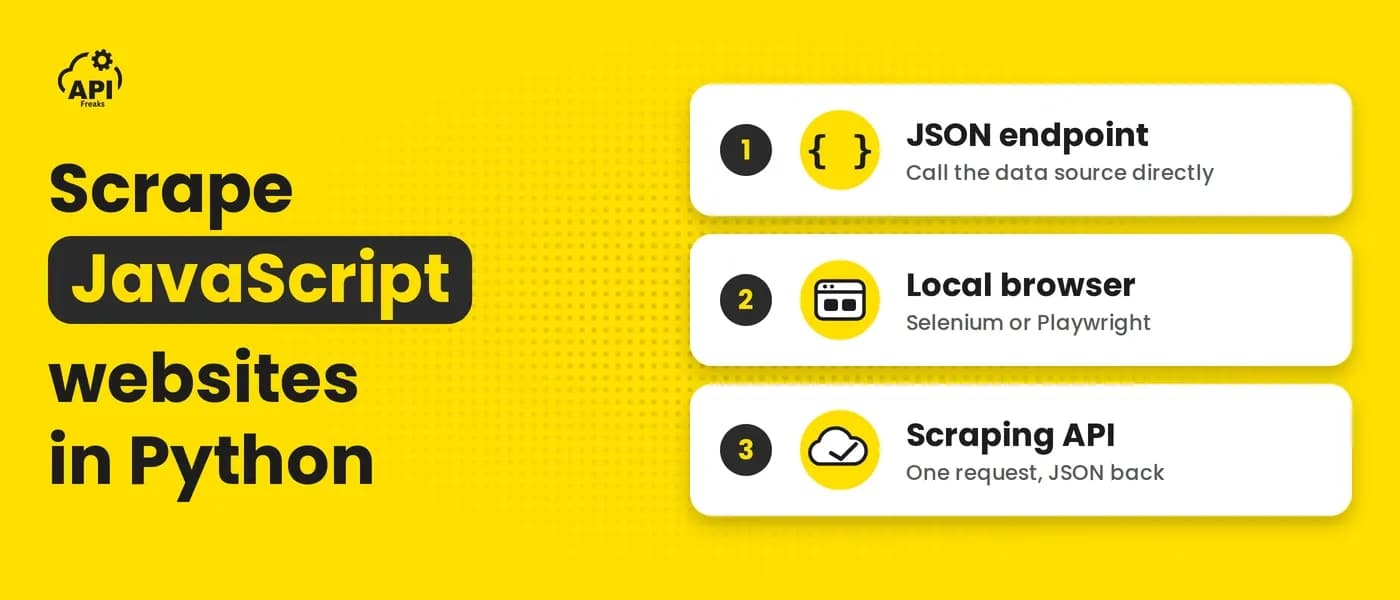
The way out comes down to three routes. If the page pulls its data from a JSON endpoint, you can call that endpoint with requests and skip rendering altogether. If you need the rendered page and want full control, a headless browser driven by Selenium or Playwright will do it. If you'd rather not run browsers yourself, a scraping API can render the page for you and hand back only the fields you select.
This guide shows how to scrape JavaScript content in Python all three ways, running each against the same JavaScript-rendered page with real captured output, so you can see what each route gives you before you commit to one.
TL;DR
- Why requests fails:
requestsdownloads the HTML the server sends. On a JavaScript-rendered page that HTML is a shell, and the data arrives later through scripts thatrequestsnever runs. - Route 1, the JSON endpoint: open the browser's Network tab, find the request that carries the data, and call it directly. It's the simplest and cheapest route when it exists.
- Route 2, a local browser: Selenium or Playwright renders the page on your machine. You get full control, and you also own the browser installs, the waits, and the upkeep.
- Route 3, the Web Scraper API: one POST with
jsEnabled=true, aclickandwaitForstep, and CSS selectors inextract, with no browsers to install or run. The response holds only the values you selected. - Match the mode to the page: if the data is already in the page source,
jsEnabled=falseor a plain JSON call does the job, andjsEnabled=truecovers everything that needs scripts to run.
Static, Server-Rendered, and JavaScript-Rendered Pages
Not every dynamic website is hard to scrape. For scraping purposes, pages fall into three groups:
| Page type | Where the content gets built | What requests receives |
|---|---|---|
| Static | Written into the HTML file ahead of time | The full content |
| Server-rendered | Assembled by the server for each request, from templates and a database | The full content |
| JavaScript-rendered | Built in the browser after the page loads, from scripts and background requests | Mostly an empty shell |
The first two look identical to a scraper: the data is already inside the HTML, so requests and BeautifulSoup handle them. A JavaScript-rendered page, also called a client-side rendered page, is one whose content is built in the browser after the page loads. The server sends a thin document plus scripts that fetch the data and write it into the page. Some do that as soon as the page opens, and others wait for an interaction such as a click, a scroll, or a filter change. The example in this guide does both.
That's why the scraper fails. requests fetches the response text and BeautifulSoup parses it, but neither builds a DOM or runs the scripts that fill the page in. A correct selector can't match content that isn't in the downloaded document yet.

You can check which kind of page you have in about ten seconds. Open the page, press Ctrl+U (Cmd+Option+U on a Mac) to view the source, and search for a value you want. View source shows roughly what requests gets. The Elements panel in DevTools shows the page after scripts have run. If the value is in Elements but missing from the source, the page is JavaScript-rendered.
Why requests and BeautifulSoup Return an Empty Page on JavaScript Websites
Every example in this guide uses the Power Tools category of Practice Software Testing - Toolshop, a free demo shop built for practicing test automation. Its robots.txt allows crawling everything except the account, admin, auth, and checkout paths. Open the Categories menu, pick Power Tools, and eight product cards appear. It's a small shop, but it behaves like real dynamic websites: the cards aren't in the HTML until scripts fetch them.
Here's the usual first attempt with requests and BeautifulSoup, pointed at the category page:
import requests
from bs4 import BeautifulSoup

url = "https://practicesoftwaretesting.com/category/power-tools"
resp = requests.get(url, timeout=15)
soup = BeautifulSoup(resp.text, "html.parser")

print(resp.status_code)
print(soup.select('[data-test="product-name"]'))
print(soup.select_one("app-root"))
Output, captured October 20, 2026:
200
[]
<app-root></app-root>
The request succeeded and the selector is correct. The page is an empty <app-root> element because a script bundle builds the whole interface in the browser, asks an API for the products, and renders the cards.
Run the check from the previous section on this page and the pattern holds: the product names show up in the Elements panel once the page loads, and they're absent from the view-source text. MDN's glossary entry Client-side rendering (CSR) covers the mechanics in more depth.
Route 1: Find the JSON Endpoint in the Network Tab
Before you reach for a browser, check where the data comes from. Many dynamic websites fetch their content as JSON from an endpoint you can call directly, which is usually simpler than rendering HTML.
- Open the page in Chrome or Firefox and open DevTools (F12, or Cmd+Option+I on a Mac).
- Go to the Network tab and filter by Fetch/XHR.
- Trigger the content. On the example page, the first
productsrequest fires as soon as the page opens, and choosing Categories then Power Tools sends another. - Click the new request in the list and look at what it sends and what comes back. If the response holds your data, you've found the source.
- Copy the request URL and its parameters, then reproduce the call in Python.

Chrome's Inspect network activity guide covers the filters and request details.
On the example page, the first request to api.practicesoftwaretesting.com/products carries a small JSON body with page, between, and is_rental, and choosing Power Tools sends one with by_category_slug instead. The page sends them with the HTTP QUERY method, but the endpoint also answers a plain GET with the same fields as query parameters, and it returns the same products the page shows. Calling it from Python takes a few lines:
import requests

url = "https://api.practicesoftwaretesting.com/products"
resp = requests.get(url, params={"by_category_slug": "power-tools", "page": 1}, timeout=15)
resp.raise_for_status()
data = resp.json()

print(f"{data['total']} products")
for product in data["data"]:
    print(product["name"], product["price"])
Output, captured October 20, 2026:
8 products
Sheet Sander 58.48
Belt Sander 73.59
Circular Saw 80.19
Random Orbit Sander 100.79
Cordless Drill 20V 125.23
Cordless Drill 24V 66.54
Cordless Drill 18V 119.24
Cordless Drill 12V 46.5
The call needs no rendering or selectors, and the prices come back as numbers. When this route works, it's the one to use.
It doesn't always work. Some endpoints expect a session cookie, a CSRF token, or a signed parameter that the page's scripts generate at runtime, and others return HTML fragments instead of JSON. When you hit one of those walls, you need something that runs the page's JavaScript for you.
Some pages embed their data as JSON inside a <script> tag in the first HTML response, which requests already receives. If a value you can see on screen appears there in the view-source, load that JSON with json.loads before reaching for a browser.
Route 2: Scrape JavaScript-Rendered Pages With Selenium or Playwright in Python
When a page has no JSON endpoint you can call, the next step is to load it the way a visitor's browser does. A real browser downloads the same HTML, runs the same scripts, sends the same background requests, and ends up with the finished page. Selenium and Playwright are browser automation libraries that let a Python script drive that browser: open a URL, click through menus, wait for content, and read the result. That makes them a common way to scrape JavaScript-heavy websites yourself.
The script below follows the steps a person would take: open the shop, open the Categories menu, choose Power Tools, wait for the product cards, and read each name and price. Here's the Selenium version:
from selenium import webdriver
from selenium.webdriver.common.by import By
from selenium.webdriver.support.ui import WebDriverWait
from selenium.webdriver.support import expected_conditions as EC

options = webdriver.ChromeOptions()
options.add_argument("--headless=new")
options.add_argument("--window-size=1280,800")
driver = webdriver.Chrome(options=options)
wait = WebDriverWait(driver, 10)

try:
    driver.get("https://practicesoftwaretesting.com/")
    wait.until(EC.element_to_be_clickable((By.CSS_SELECTOR, '[data-test="nav-categories"]'))).click()
    wait.until(EC.element_to_be_clickable((By.CSS_SELECTOR, '[data-test="nav-power-tools"]'))).click()
    wait.until(EC.presence_of_element_located((By.CSS_SELECTOR, '[data-test="product-name"]')))

    names = driver.find_elements(By.CSS_SELECTOR, '[data-test="product-name"]')
    prices = driver.find_elements(By.CSS_SELECTOR, '[data-test="product-price"]')
    for name, price in list(zip(names, prices))[:3]:
        print(name.text, price.text)
finally:
    driver.quit()
Output, captured October 20, 2026, with Selenium 4.51 (the first three of eight products):
Sheet Sander $58.48
Belt Sander $73.59
Circular Saw $80.19
Two details in that snippet cost me runs before they worked. driver.get() returns when the page's load event fires, but the app builds its navigation a moment later, so a bare find_element right after it failed every time with NoSuchElementException. And headless Chrome's default window is small enough that the site collapses its menu into a toggle, so Categories couldn't be clicked until I set --window-size=1280,800.
Playwright follows the same flow in about a dozen lines:
from playwright.sync_api import sync_playwright

with sync_playwright() as p:
    browser = p.chromium.launch()
    page = browser.new_page(viewport={"width": 1280, "height": 800})
    page.goto("https://practicesoftwaretesting.com/")
    page.click("[data-test='nav-categories']")
    page.click("[data-test='nav-power-tools']")
    page.wait_for_selector("[data-test='product-name']")

    names = page.locator("[data-test='product-name']").all_inner_texts()
    prices = page.locator("[data-test='product-price']").all_inner_texts()
    for name, price in list(zip(names, prices))[:3]:
        print(name, price)
    browser.close()
Output, captured October 22, 2026, with Playwright 1.56 (the first three of eight products):
Sheet Sander $58.48
Belt Sander $73.59
Circular Saw $80.19
What a local browser asks of you:
- Setup takes the library plus the browser tooling around it. Since version 4.6, Selenium ships with Selenium Manager, which downloads drivers for you, and since 4.11 it can also download Chrome for Testing (Selenium 4.11.0 Released!). Playwright downloads its own browsers with a one-time
playwright installafterpip install playwright. - Every interaction needs the right wait condition, as Selenium's Waiting Strategies page explains. A fixed sleep can fail when it's too short and waste time when it's too long.
- Browsers and drivers update on their own schedule, each instance uses real memory and CPU, and running many pages at once means managing a pool. None of this is hard for one script on your laptop, but it adds up on a server running every hour.
If that upkeep suits your project, a local browser gives you the most control. If you'd rather hand rendering to a service, there's a third route.
Route 3: Scrape JavaScript-Rendered Pages With the Web Scraper API
The Selenium script above works, so the real question is who runs the browser. The Web Scraper API moves that job to the service: you send a target URL and an ordered list of instructions, and it loads the page in a real browser, runs your steps, and returns the values your selectors matched as JSON. Your Python code sends one POST request with nothing installed beyond requests, and the same request works from any language that can send one.
That shift matters most once a scraper moves from your laptop to production. Running the browser yourself means servers sized for browser instances, install and version upkeep, and your own proxies and CAPTCHA handling. With the API, those pieces sit on the service's side, and what stays with you is the part specific to your project: the selectors and the extraction logic. Clicks, form fills, and waits are instructions in the request, a viewport size, ad blocking, cookies, and blocked URLs are each a parameter or a body field, and proxy rotation and CAPTCHA solving are available when a target calls for them. Instruction names and parameters below follow the Web Scraper API Reference, and plans are listed on API Plans.
Sending the Request: jsEnabled, click, and waitFor
Everything that controls the page lives in the instructions array, and the steps run in order. To get the Power Tools products, you wait for the menu to render, open Categories, choose Power Tools, wait for the product cards, and then extract with CSS selectors:
import os
import requests

API_URL = "https://api.apifreaks.com/v1.0/scraping"
API_KEY = os.environ["APIFREAKS_API_KEY"]
TARGET = "https://practicesoftwaretesting.com/"

body = {
    "instructions": [
        {"waitFor": "[data-test='nav-categories']"},
        {"click": "[data-test='nav-categories']"},
        {"click": "[data-test='nav-power-tools']"},
        {"waitFor": "[data-test='product-name']"},
        {"extract": {
            "names": "[data-test='product-name']",
            "prices": "[data-test='product-price']",
            "topProduct": "a.card:first-child [data-test='product-name']",
            "rating": "[data-test='product-rating']",
        }},
    ]
}

resp = requests.post(
    API_URL,
    params={"url": TARGET, "jsEnabled": "true", "windowSize": "1280,800"},
    headers={"X-apiKey": API_KEY},
    json=body,
    timeout=120,
)
resp.raise_for_status()
print(resp.json())
A few notes on the request itself:
url,jsEnabled, andwindowSizego in the query string, andrequestsURL-encodes the target for you throughparams. The window size matters for the same reason it did in Selenium: this shop collapses its menu in a narrow window, so the request asks for a desktop-sized one.- The key goes in the
X-apiKeyheader. Keep it in an environment variable so it never lands in your repo. waitFortakes a selector (CSS or XPath) and waits for that element before continuing. The first one waits for the menu to render, and the second waits for the product cards. If a page keeps old results on screen while new ones load, wait for an element only the new state has.waitpauses for a fixed number of milliseconds ({"wait": 3000}) when there's no element to watch for.extractmaps output names you choose to CSS selectors (XPath works too). Each key becomes a field in the response.- Set
jsEnabled=falsefor pages whose data is already in the page source. Static mode supports the sameextractinstruction with CSS or XPath selectors, so rendering is only needed when the content appears after scripts run.
Reading extractedData: One Match, Many Matches, No Match
Response, captured October 20, 2026, with each array trimmed to its first two entries and everything else as returned:
{
  "extractedData": {
    "names": [
      "<h5 _ngcontent-ng-c3967178433=\"\" data-test=\"product-name\" class=\"card-title\"> Sheet Sander </h5>",
      "<h5 _ngcontent-ng-c3967178433=\"\" data-test=\"product-name\" class=\"card-title\"> Belt Sander </h5>"
      // ... 6 more entries (8 in total)
    ],
    "topProduct": " Sheet Sander ",
    "rating": [],
    "prices": [
      "<span _ngcontent-ng-c3967178433=\"\" data-test=\"product-price\">$58.48</span>",
      "<span _ngcontent-ng-c3967178433=\"\" data-test=\"product-price\">$73.59</span>"
      // ... 6 more entries (8 in total)
    ]
  }
}
The response is a single extractedData object, and the shape of each field tells you how many elements its selector matched:
- A single match returns a string:
topProducttargets only the first card, so it comes back as one value, with the page's whitespace still around it. Call.strip()on it. - Several matches return an array:
namesandpriceseach matched one element per product, so each is a list of 8 in page order. - No match returns an empty array: there's no
product-ratingelement on the page, so in rendered moderatingcame back as[]rather thannullor an error. Read fields with.get()anyway, so your code also handles a field that's missing entirely.
Checking for missing or empty fields is an easy way to catch a class the site renames later.
What text=true Changes
As the response above shows, multi-element matches keep their HTML tags by default, which is why every entry in names and prices is wrapped in its element. Adding text=true to the query string strips them to plain text. Single-element matches in rendered mode are already plain text, as topProduct shows, so text=true mostly changes what your arrays look like.
Here is the same request with text=true added, with the arrays trimmed to their first two entries:
{
  "extractedData": {
    "names": [
      " Sheet Sander ",
      " Belt Sander "
      // ... 6 more entries (8 in total)
    ],
    "topProduct": " Sheet Sander ",
    "rating": [],
    "prices": [
      "$58.48",
      "$73.59"
      // ... 6 more entries (8 in total)
    ]
  }
}
The tags are gone, and the price strings still include the currency symbol. For this loop, add "text": "true" to params. A field with a single match always comes back as a string, while several matches come back as a list, so a small helper keeps the loop consistent. Turning the JavaScript table into rows is then a zip away:
def as_list(value):
    """One match is a string, several are a list, none is empty or missing."""
    return [value] if isinstance(value, str) else value


data = resp.json()["extractedData"]

for name, price in zip(as_list(data.get("names", [])), as_list(data.get("prices", []))):
    print(f"{name.strip()}: {price}")
Output, from the text=true response above:
Sheet Sander: $58.48
Belt Sander: $73.59
Circular Saw: $80.19
Random Orbit Sander: $100.79
Cordless Drill 20V: $125.23
Cordless Drill 24V: $66.54
Cordless Drill 18V: $119.24
Cordless Drill 12V: $46.5
Zipping assumes every card has both values, so compare lengths first if some can lack one.
Timeouts, Retries, and Backoff in Production
A scraper that runs unattended will meet slow targets, dropped connections, and rate limits, whatever service sits behind it, so wrap the call in a small helper instead of a bare requests.post. A rendered request drives a real browser, so the helper allows a generous timeout, and it retries only the conditions that usually clear on a second try, waiting longer each time:
import os
import random
import time

import requests

API_URL = "https://api.apifreaks.com/v1.0/scraping"
API_KEY = os.environ["APIFREAKS_API_KEY"]
TARGET = "https://practicesoftwaretesting.com/"
RETRYABLE = {408, 429, 500, 502, 503, 504}  # usually clear on a second try


def scrape(target_url, instructions, max_retries=3, timeout=120):
    params = {"url": target_url, "jsEnabled": "true", "text": "true", "windowSize": "1280,800"}
    reason = "no response"
    for attempt in range(max_retries + 1):
        wait = 2 ** attempt + random.uniform(0, 1)  # about 1s, 2s, 4s
        try:
            resp = requests.post(
                API_URL,
                params=params,
                headers={"X-apiKey": API_KEY},
                json={"instructions": instructions},
                timeout=timeout,
            )
        except (requests.ConnectionError, requests.Timeout) as exc:
            reason = type(exc).__name__  # network hiccup, try again
        else:
            if resp.ok:
                return resp.json()["extractedData"]
            if resp.status_code not in RETRYABLE:
                resp.raise_for_status()  # the request needs fixing, so don't repeat it
            reason = f"HTTP {resp.status_code}"
            hint = resp.headers.get("Retry-After", "")
            if hint.isdigit():
                wait = max(wait, int(hint))  # honor the server's own retry hint
        if attempt < max_retries:
            time.sleep(wait)
    raise RuntimeError(f"gave up after {max_retries + 1} attempts (last: {reason})")


instructions = [  # the same steps as the request above
    {"waitFor": "[data-test='nav-categories']"},
    {"click": "[data-test='nav-categories']"},
    {"click": "[data-test='nav-power-tools']"},
    {"waitFor": "[data-test='product-name']"},
    {"extract": {
        "names": "[data-test='product-name']",
        "prices": "[data-test='product-price']",
    }},
]

data = scrape(TARGET, instructions)
print(data)
Output, captured October 20, 2026:
{'names': [' Sheet Sander ', ' Belt Sander ', ' Circular Saw ', ' Random Orbit Sander ', ' Cordless Drill 20V ', ' Cordless Drill 24V ', ' Cordless Drill 18V ', ' Cordless Drill 12V '], 'prices': ['$58.48', '$73.59', '$80.19', '$100.79', '$125.23', '$66.54', '$119.24', '$46.5']}
scrape returns the extractedData object from the request above, as plain text because the helper sets text=true, so the zip loop works on it unchanged. The delay doubles on each attempt, waits at least as long as any Retry-After hint the server sends, and carries random jitter so parallel workers don't retry at the same moment. Errors such as a 400 or 401 are raised straight away, because repeating a request that needs fixing doesn't help, and the attempt cap stops a request that can never succeed from looping forever. When the cap is reached, the error names the last reason, so you can tell a network problem from a request that needs changing, such as a selector. For the wider pattern, see API Error Handling: How to Build Integrations That Don't Break.
Proxies and Blocked Requests
Two more options cover the remaining edge cases. Add proxy=true to the query string to use the default proxy pool. In rendered mode, a top-level blockUrl list in the request body blocks matching script or URL patterns during the page's network requests. Block carefully, because blocking a script the page needs to build its content means the data never renders. Both options are covered in the Web Scraper API Reference.
Which Way to Scrape a JavaScript Website in Python
| JSON endpoint | Selenium or Playwright | Web Scraper API | |
|---|---|---|---|
| Runs JavaScript | No, calls the data source directly | Yes, on your machine | Yes, on the API's side |
| Setup | requests only |
Library plus a browser | requests plus an API key |
| Handles clicks and waits | Not needed | Yes, in your code | Yes, as instructions steps |
| What you maintain | The endpoint call | Browsers, drivers, waits, scaling | Selectors and extraction logic |
| Best fit | Data with a callable source | Full control or custom flows | Rendering without running browsers |
Start with the Network tab. If the data has a JSON source you can call, you're done in a handful of lines. If it doesn't, decide whether you want to own the browser. Selenium or Playwright gives you every lever, plus the installs, waits, and upkeep that come with them, while the Web Scraper API keeps your code to one POST request and a set of selectors. Whichever route you pick to scrape a JavaScript website in Python, run a static call first and switch to rendering for the pages that need it.
The Web Scraper API is part of the Web Scraping APIs category on APIFreaks, which shares a single API key with the rest of the platform.
Start scraping JavaScript-rendered pages with 10,000 free credits. The Web Scraper API requires no credit card to get started. Create a free account and make your first call in minutes.
Frequently Asked Questions
Is it illegal to scrape a website?
It depends on what you scrape, how, and where. On a preliminary injunction record in hiQ Labs, Inc. v. LinkedIn Corporation, the Ninth Circuit found that hiQ had raised serious questions about whether the Computer Fraud and Abuse Act's "without authorization" concept reaches public web pages, following the Supreme Court's decision in Van Buren v. United States. Other claims can still apply, such as breach of a site's terms of service, copyright, or privacy law when personal data is involved, and other countries have their own rules. Stick to public data, follow the site's robots.txt (RFC 9309: Robots Exclusion Protocol), and get legal advice for your own case.
Can I use Python to scrape web sites?
Yes. Python has a library for each part of the job: requests fetches pages, BeautifulSoup parses HTML, Scrapy crawls sites, and Selenium or Playwright drive a real browser. Static and server-rendered pages need only requests and BeautifulSoup, while JavaScript-rendered pages call for one of the three routes in this guide.
Is AI scraping illegal?
It depends on what is collected, how, and what happens to it afterward, and no single US law settles it. In Thomson Reuters Enterprise Centre GmbH v. ROSS Intelligence Inc., a copyright case about training data rather than about scraping a website, the Third Circuit held in September 2026 that copying Westlaw headnotes to train a competing legal research tool was not fair use. That system was not generative AI, questions about generative AI training are still working through other courts, and ROSS has said it will seek Supreme Court review (ROSS Says It Will Ask Supreme Court to Review 3rd Circuit Ruling for Thomson Reuters in Copyright Case). Privacy law can also apply when the data includes personal information.
Is web scraping outdated?
No. Scraping is still how you get data that a site doesn't offer through an API or feed. When a page builds its content in the browser, you can call the underlying JSON endpoint, drive a headless browser, or use a rendering scraping API such as the Web Scraper API, and the routes in this guide cover each. Check for an official API or data feed first.
Can BeautifulSoup scrape JavaScript pages?
Not by itself. BeautifulSoup parses whatever HTML you give it and never runs scripts, so on a JavaScript-rendered page it only sees the empty shell. Hand it rendered HTML instead, such as Selenium's driver.page_source, and it parses that fine.
What is a JavaScript-rendered page?
A JavaScript-rendered page is one whose visible content is built in the browser after the initial HTML loads. Scripts fetch data and write it into the page, so the HTML a server returns is missing that content until the scripts run.
Should I use Selenium or Playwright to scrape JavaScript sites?
Either works, because both drive a real browser that runs the page's scripts. In the examples above, Selenium needed explicit waits before it could click, while Playwright's click worked without one, so Playwright took less waiting code for the same task. Choose the one that fits your language, your existing tests, and the browser you need.
Is Selenium or an API better for large projects?
It depends on what you'd rather manage. With Selenium, you run the browsers, update drivers, and host the servers yourself. With an API, the service runs the browsers for you, with features such as proxy rotation and CAPTCHA solving available as options.